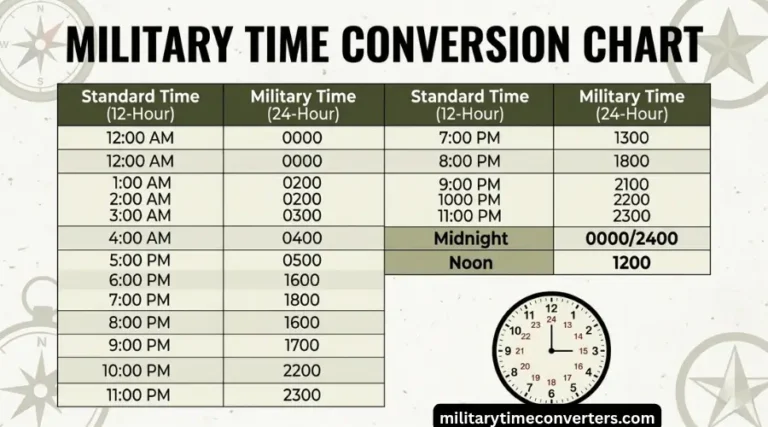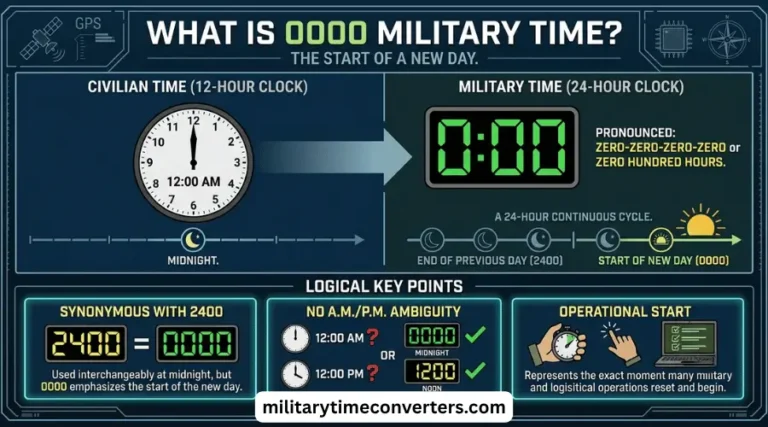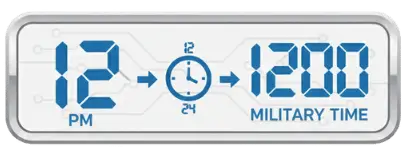
How to Set Phone to Military Time (iOS + Android)
You can set your phone to military time in under a minute. Instead of AM and PM, the clock runs one continuous count from 00:00 to 23:59, so 2:30 PM simply becomes 14:30. The setting lives in the same place on every device — your date and time options — and Military Time Converters has the exact taps for iPhone, Pixel, Samsung, and Mac below.
Maybe you’re starting a new job in healthcare, aviation, or the military and need to read schedules written in 24-hour time. Or maybe you’re just tired of double-checking whether a text meant 7 in the morning or 7 at night. Either way, flipping the switch is easy — and switching back is just as easy if you decide it’s not for you.
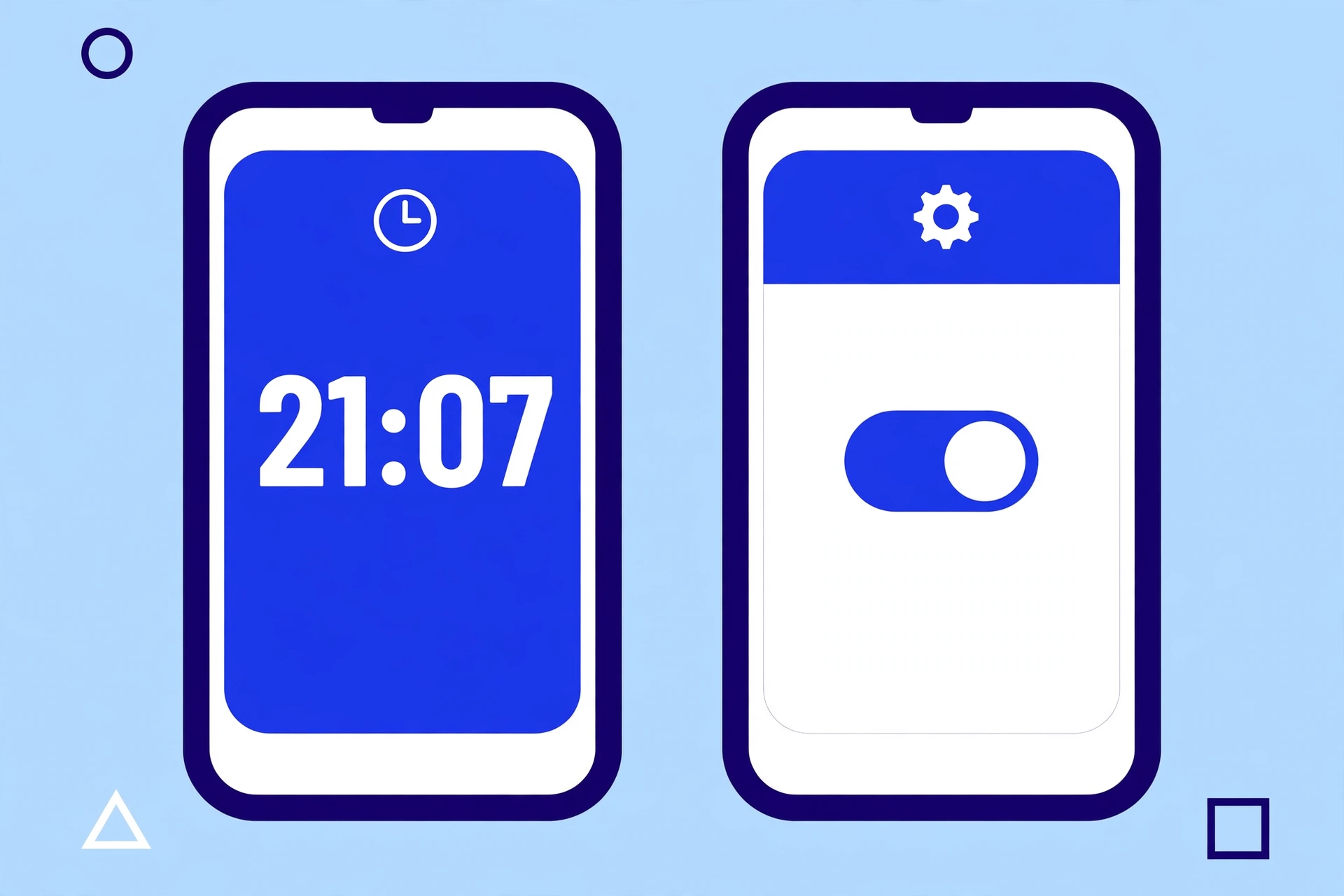
Quick Answer: Where the Military Time Setting Lives
Short on time? Here is exactly where the switch lives on each device:
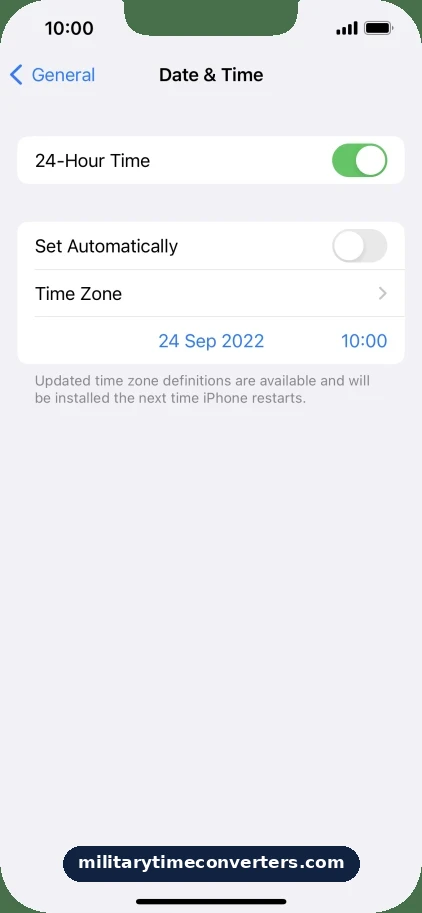
Settings > General > Date & Time — turn on the switch labeled 24-Hour Time.
Settings > System > Date & time — turn on the switch labeled Use 24-hour format.
Settings > General management > Date and time — turn on the switch labeled Use 24-hour format.
System Settings > General > Date & Time — turn on the switch labeled 24-hour time.
The menu names can vary slightly between brands and software versions, but the switch is always inside your date and time settings.
How to Set an iPhone to Military Time
Apple calls the 24-hour display “24-Hour Time,” and turning it on takes about ten seconds.
Step-by-Step: iPhone Military Time
- Open the Settings app on your iPhone.
- Tap General, then tap Date & Time.
- Turn on the 24-Hour Time switch.
- Go back to the Home Screen — your lock screen, status bar, and Clock app now show 24-hour time.
Apple’s iPhone User Guide notes that the 24-hour option may not be available in every region.
What Changes on Your iPhone
- Your lock screen, status bar, and Clock app show 24-hour times — 14:30 instead of 2:30 PM.
- Alarms and timers display in 24-hour format.
- Timestamps in Messages and other apps follow the new format.
Your alarms still ring at the same moments — only the labels change. An alarm set for 7:00 AM now reads 07:00, and one for 7:00 PM reads 19:00. If you’re still learning the format, our 0700 military time and 0600 military time guides show exactly what each hour means.
If You Don’t See the 24-Hour Time Switch
On some iPhones the switch is hidden because the region format controls the clock. Go to Settings > General > Language & Region and choose a region that uses 24-hour time, then check Date & Time again. Also make sure Set Automatically is on so the time stays accurate.
How to Set an Android Phone to Military Time
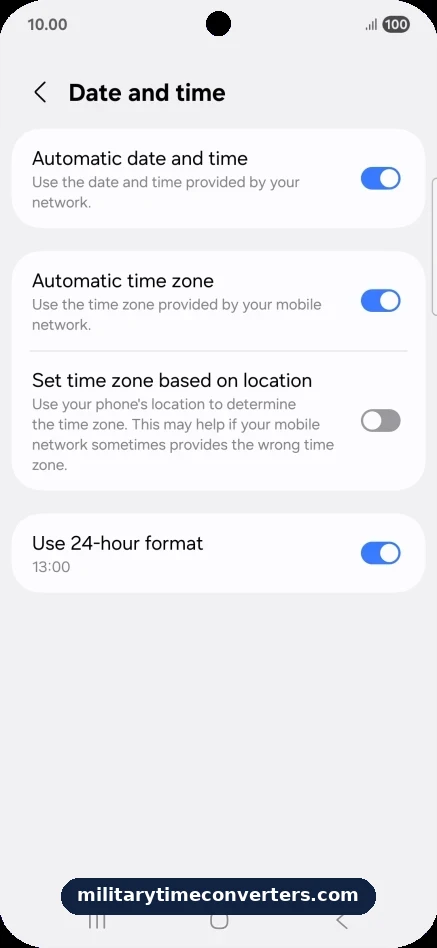
On Android the setting is called “Use 24-hour format,” and the exact path depends on your phone’s maker.
Google Pixel and Stock Android
- Open Settings.
- Tap System, then tap Date & time.
- Turn on Use 24-hour format.
- Your status bar and clock widgets update immediately.
On some Android phones the 24-hour display follows your language and region settings instead of a separate switch — if you don’t see the toggle, check that your region uses 24-hour time by default.
Samsung Galaxy
- Open Settings.
- Tap General management.
- Tap Date and time.
- Turn on Use 24-hour format.
Quick tip: on many Android phones you can press and hold the clock widget on your Home screen to jump straight to clock settings, saving you a trip through the Settings app.
Does Your Phone Show Real Military Time?
Not quite — but it is close enough that most people use the terms interchangeably. Your phone’s 24-hour display shows times with a colon, like 14:30. Military time is written as four digits with no colon, like 1430.
The numbers mean the same thing. 14:30 on your phone and 1430 in military time both refer to half past two in the afternoon. The colon is just a display choice — your phone’s designers added it for readability.
If you need to write military time for a form, schedule, or official document, drop the colon and pad single-digit hours with a
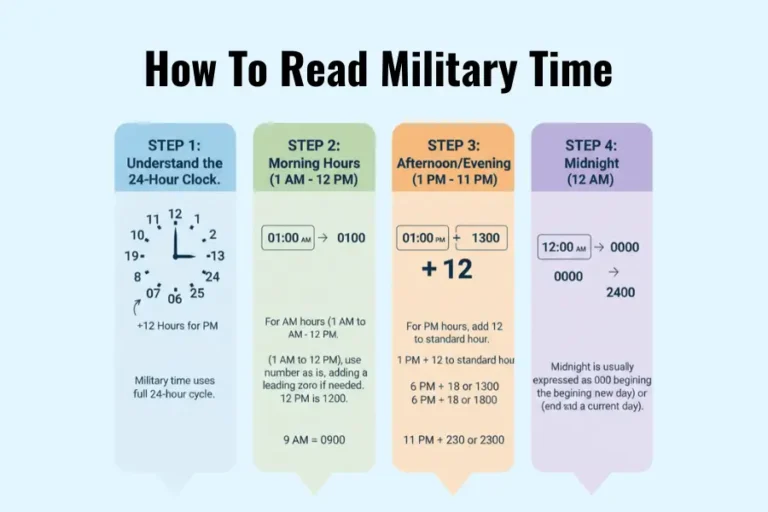
New to the 24-hour clock? Learn how to read military time step by step.
leading zero. Your phone is already showing you the right numbers; you just need to reformat them.
5 Habits That Make 24-Hour Time Feel Normal Fast
Switching to 24-hour time is easy — making it feel automatic takes a few days. These five habits speed up the adjustment:
- Say the time out loud in 24-hour format. When you check your phone and see 16:45, say “sixteen forty-five” instead of converting to “4:45 PM.” Hearing it reinforces the new pattern.
- Do the afternoon math once, then trust it. For PM hours, subtract 12 (so 1800 − 1200 = 6:00 PM). After a few days you will stop doing the math and just know that 1800 means evening.
- Learn the anchor times. Memorize 0000 (midnight), 0600 (6 AM), 1200 (noon), and 1800 (6 PM). Every other time falls between these landmarks.
- Keep a military time chart handy. Tape a conversion chart to your desk or save one on your phone for the first week. Glancing at it beats doing mental math.
- Change one more clock. Set your computer or watch to 24-hour time too. Seeing the format everywhere makes it normal faster.
Common Problems After Switching
01
My Alarm Rang at the Wrong Time
If an alarm went off at the wrong hour after you switched, the alarm was probably saved with the old AM/PM label. Open your Clock app and check each alarm — an alarm set for 7:00 PM before the switch might now read 07:00 (7 AM). Re-save it as 19:00 and you are set.
02
My Time Is an Hour Off
A wrong hour usually means your time zone or daylight saving setting is off, not the 24-hour display. Make sure Set Automatically is turned on in your date and time settings. For background on how zones and seasonal changes work with the 24-hour clock, see our guide to Time Zones & Standards and read whether military time uses daylight saving time.
03
I Want to Switch Back
Switching back is just as easy. On iPhone, turn off 24-Hour Time in Settings > General > Date & Time. On Android, turn off Use 24-hour format. Your alarms, events, and appointments stay exactly as they are — only the display changes.
Why Most American Phones Default to AM/PM
American phones default to AM/PM because the 12-hour clock is the standard for everyday life in the United States. While the rest of the world uses 24-hour time for schedules, transport, and official documents, the US sticks with AM and PM out of habit and tradition. If you are curious about the history, read why the US uses AM/PM instead of 24-hour time.
Read why the US uses AM/PM instead of 24-hour time for the full story.
Conclusion
Setting your phone to military time takes one toggle: 24-Hour Time on an iPhone, or Use 24-hour format on Android. Your phone will then show the 24-hour clock everywhere, though in the colon style (14:30) rather than the four-digit style (1430). If you want to go all the way, practice the written format using our guides, and use the Military Time Converters tool whenever a time stops you in your tracks.